iOS Sleep Schedules Do More Than Set an Alarm
The sleep schedule feature in iOS isn’t just a fancy alarm clock. It combines a bedtime reminder, a wake-up alarm, a “wind down” mode that limits notifications before bed, and Apple Health tracking that shows you how consistently you’re actually meeting your sleep goals. Setting it up takes five minutes, and it’s one of the most useful built-in health features on your iPhone.
Setting Up Your Schedule
Open the Health app and tap Browse → Sleep. If you haven’t set up sleep tracking before, tap Get Started and follow the prompts.
Under Your Schedule, tap Full Schedule & Options. Here you set:
- Bedtime: When you want to start winding down. This triggers your Wind Down shortcuts and DND.
- Wake Up: Your alarm time. You can choose different times for different days of the week — later on weekends, for example.
- Sleep Goal: How many hours you want to sleep. The app will calculate what bedtime you need to hit your goal.
Enable Sleep Reminder to get a notification at your bedtime. Enable Wake Up Alarm for the morning alarm — you can choose the sound and volume.
Wind Down Shortcuts
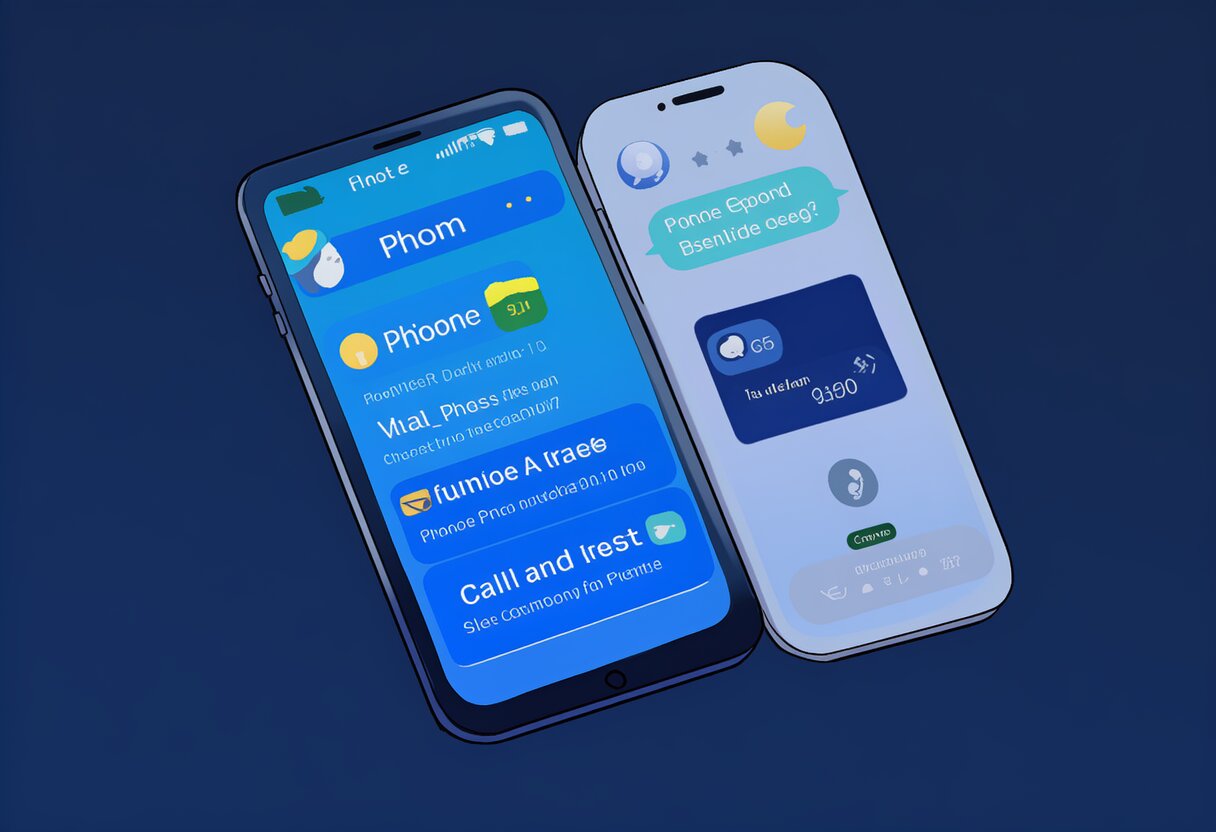
Wind Down is the most underrated part of the sleep schedule. At your chosen bedtime, iOS can automatically:
- Turn on Do Not Disturb (called “Sleep Mode” — calls and notifications are silenced)
- Dim the lock screen and simplify it to show only the time and your morning alarm
- Display Wind Down shortcuts on the lock screen — quick-access buttons for apps you want to use before bed (like a meditation app, Kindle, or journal)
To add shortcuts, go to Health → Sleep → Full Schedule & Options → Wind Down Shortcuts. Choose apps that help you relax, not apps that keep you scrolling.
Customizing for Weekdays vs Weekends
Under Full Schedule, you can set different times for every day of the week. A common setup: 10:30 PM bedtime / 6:30 AM wake-up on weekdays, midnight bedtime / 9:00 AM wake-up on weekends. The sleep goal stays the same — iOS will just adjust what it tracks based on your actual schedule.
You can also toggle Sleep Mode manually in Control Center if you want to activate it early or turn it off without waiting for your scheduled time.
Checking Your Sleep Data
If you wear an Apple Watch, iOS automatically tracks your time in bed, time asleep, and sleep stages (REM, Core, Deep). Even without a watch, it tracks based on your phone usage patterns — when you stop using your phone and when you pick it up again.
View your data in Health → Sleep. The “Time in Bed vs. Sleep Goal” chart shows whether you’re consistently hitting your target. Trends over weeks and months are more useful than any single night’s data.
Why Bother?
Consistent sleep and wake times are one of the most impactful things you can do for sleep quality. Your circadian rhythm works best with regularity — going to bed and waking up at roughly the same time every day improves how quickly you fall asleep, how restorative your sleep is, and how you feel during the day. The iOS sleep schedule doesn’t force you to do anything, but it creates the structure and the reminders that make consistency easier than chaos.