Flex Mode Is the Whole Point of a Foldable
If you never use Flex mode, your Z Flip or Z Fold is just a regular phone that folds. Flex mode — using the phone partially folded at an angle, with the top half displaying content and the bottom half acting as a trackpad or control surface — is what makes foldables genuinely useful instead of just expensive. Here’s how to use it.
Activating Flex Mode
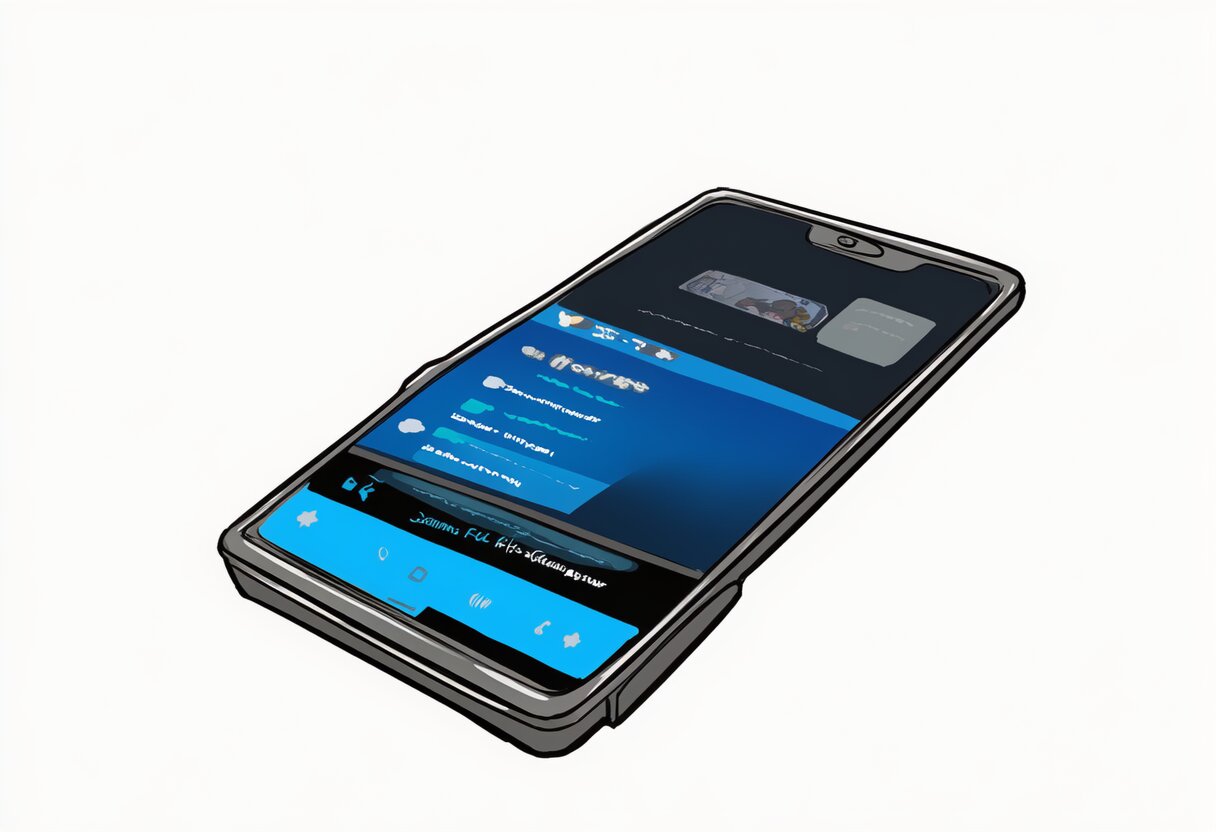
Partially fold your phone to an angle between roughly 75 and 115 degrees. The phone detects the hinge position and automatically switches into Flex mode if the current app supports it. The top screen shows the main content; the bottom screen shows controls (playback, navigation, camera controls, etc.).
You can also enable or disable Flex mode per app: Settings → Labs → Flex mode panel → toggle apps on or off.
Camera: The Best Use of Flex Mode
Partially fold the phone and set it on a surface. The bottom half shows camera controls (shutter button, mode selector, zoom). The top half shows the viewfinder. This turns the phone into a hands-free camera — prop it on a table, a rock, a shelf, and take group photos or long-exposure shots without holding the phone or propping it against something precarious.
On the Z Flip 5 and newer, the cover screen can also show a preview when the phone is folded, so your subjects can see themselves before you take the photo. This is genuinely useful and one of the few foldable features that regular phones can’t replicate.
Video Calls
Set the phone in Flex mode on a table during a video call. The top screen shows the caller; the bottom screen shows yourself and controls. It’s a hands-free video call without needing a stand. On the Z Fold, the larger inner screen makes this feel more like a small monitor than a phone call.
Media Playback
YouTube, Netflix, and most video apps support Flex mode. The video plays on the top screen; the bottom screen shows playback controls, volume, and a progress bar. Prop the phone on a plane tray table, a nightstand, or a desk. No stand needed.
Apps That Don’t Officially Support Flex Mode
Not every app has built-in Flex mode support. For unsupported apps, Samsung offers a “Flex mode panel” that adds basic controls to the bottom screen: brightness, volume, and a mini trackpad for scrolling. Enable it in Settings → Labs → Flex mode panel. It’s not as good as native support, but it makes the bottom screen useful instead of blank.
Tips
- The hinge holds at multiple angles — experiment with what works best for different activities. A steeper angle for video calls, a flatter angle for typing.
- Use a case that doesn’t interfere with the hinge. Thick cases can prevent the phone from detecting the fold angle properly.
- On the Z Fold, Flex mode in tablet orientation (folded like a laptop) works with more apps than in phone orientation.