Checking Your Camera on a Phone Is Fine — But a TV Is Better
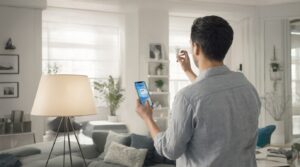
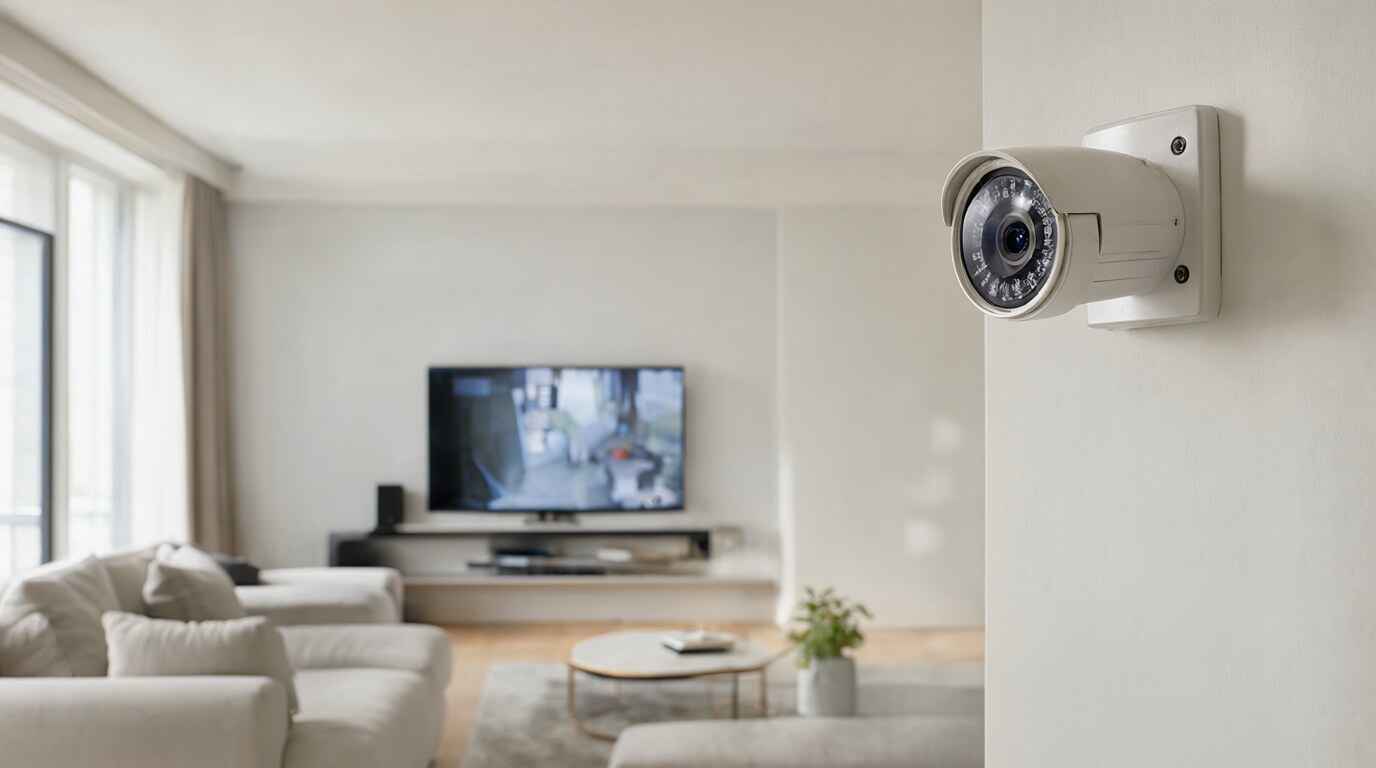
If you use Nest cameras for home monitoring (baby cam, front door, backyard), checking feeds on your phone works but requires unlocking your phone, opening the app, and selecting the camera. Streaming to a TV gives you a persistent, always-on display — ideal for monitoring a sleeping baby, keeping an eye on the front door, or watching the backyard while you’re in the living room.
Method 1: Chromecast (Easiest)
If you have a Chromecast or a TV with Chromecast built-in:
- Make sure your phone and Chromecast are on the same Wi-Fi network
- Open the Google Home app (not the Nest app — Google migrated camera controls to Home)
- Find your camera in the device list
- Tap the camera to open the live view
- Tap the Cast icon (the rectangle with Wi-Fi waves)
- Select your TV/Chromecast from the list
- The camera feed appears on your TV
The feed streams in near-real-time with about 2-5 seconds of latency. You can keep it running as long as you want, though extended streaming may drain your phone’s battery if you’re casting from the phone. For longer sessions, use a Google Nest Hub as the casting source instead.
Method 2: Google Assistant Voice Command
If you have a Google Nest Hub, Nest Hub Max, or a TV with Google Assistant built-in:
- Say “Hey Google, show [camera name] on [TV name]”
- Example: “Hey Google, show front door on living room TV”
- The feed appears on the specified display
You need to have your cameras and displays set up in the same Google Home household. The camera names and display names are whatever you set them to in the Google Home app. If you haven’t named them clearly (“Camera 1” won’t be fun to say), rename them in Google Home settings.
To stop the stream: “Hey Google, stop [camera name]” or “Hey Google, stop casting.”
Method 3: Google Nest Hub as a Dedicated Monitor
If you have a Nest Hub or Nest Hub Max, it doubles as a camera monitor without needing a TV. Say “Hey Google, show [camera name]” and the feed appears on the Hub’s screen. The Nest Hub Max’s 10-inch screen is large enough for comfortable monitoring. You can set up a routine that automatically shows a camera feed at certain times (e.g., show the baby cam every night at 8pm).
Method 4: Android TV / Google TV App
Some Android TV and Google TV devices support the Google Home app natively. Open the Home app on your TV, find your camera, and view the feed directly. This is less common but works on Sony, TCL, and Hisense TVs with Google TV built in.
Troubleshooting
- “Camera not available” when casting: Usually a Wi-Fi issue. Make sure the camera, your phone, and the Chromecast are on the same network. If you have a dual-band router (2.4GHz and 5GHz), all devices should be on the same band or the router should handle cross-band communication.
- Laggy or pixelated stream: Nest cameras adjust quality based on bandwidth. If your Wi-Fi is congested, the stream drops to lower quality. Move the camera closer to your router or reduce the number of devices on the network.
- Can’t find the Cast icon: Force-close and reopen the Google Home app. If it still doesn’t appear, restart your phone and Chromecast.