Setting up a smart home doesn’t require technical skills or a big budget. This guide walks you through choosing a platform, buying your first devices, and creating automations — step by step, no jargon.
By the end, you’ll have a smart home that saves time, improves security, and makes daily life easier. Total cost for a starter setup: $115-175.
Step 1: Choose Your Platform
Your smart home platform is the brain — it controls all your devices and runs automations. Choose based on what you already own.
Alexa (Amazon) — Best for Most People
Choose if: You want the most device compatibility and don’t mind Amazon’s ecosystem.
- Works with 100,000+ smart home devices — more than any other platform
- Smart speakers start at $79.99 (Echo Dot) — cheapest entry point after Amazon’s August 2026 price increase
- Works as a Matter controller — pairs with devices from every major brand
- Routines (automations) are easy to create in the app
- Downside: Amazon collects usage data. Not ideal for privacy-focused users.
Google Home — Best for Google Users
Choose if: You use Google services heavily (Calendar, Maps, YouTube Music).
- Best natural language understanding — conversational commands work better
- Google Nest Hub ($100) adds a screen for visual controls and video calls
- Integrates with Google services (calendar reminders, commute info)
- Downside: Fewer compatible devices than Alexa. Google collects data.
Apple HomeKit — Best for Privacy and Apple Users
Choose if: You’re all-in on Apple and prioritize privacy.
- Strictest privacy and security requirements for device certification
- Seamless integration with iPhone, Apple Watch, Mac, Apple TV
- HomePod Mini ($99) or Apple TV ($129) acts as your home hub
- Siri control from any Apple device
- Downside: Fewer compatible devices. More expensive entry point.
Matter — The Universal Standard
Important: Matter is a new standard that lets devices work across ALL platforms. When buying new devices, prefer Matter-compatible ones. They work with Alexa, Google, and HomeKit — no lock-in.
Step 2: Your First 3 Devices
Don’t buy everything at once. Start with these 3 devices that provide immediate value:
Device 1: Smart Speaker ($80-100)
Your smart home controller. Voice commands control all other devices.
- Alexa: Amazon Echo Dot — $79.99 (no hub needed for Wi-Fi devices)
- Google: Google Nest Hub — $100 (adds a screen)
- Apple: HomePod Mini — $99 (best audio)
Device 2: Smart Bulbs ($30-50)
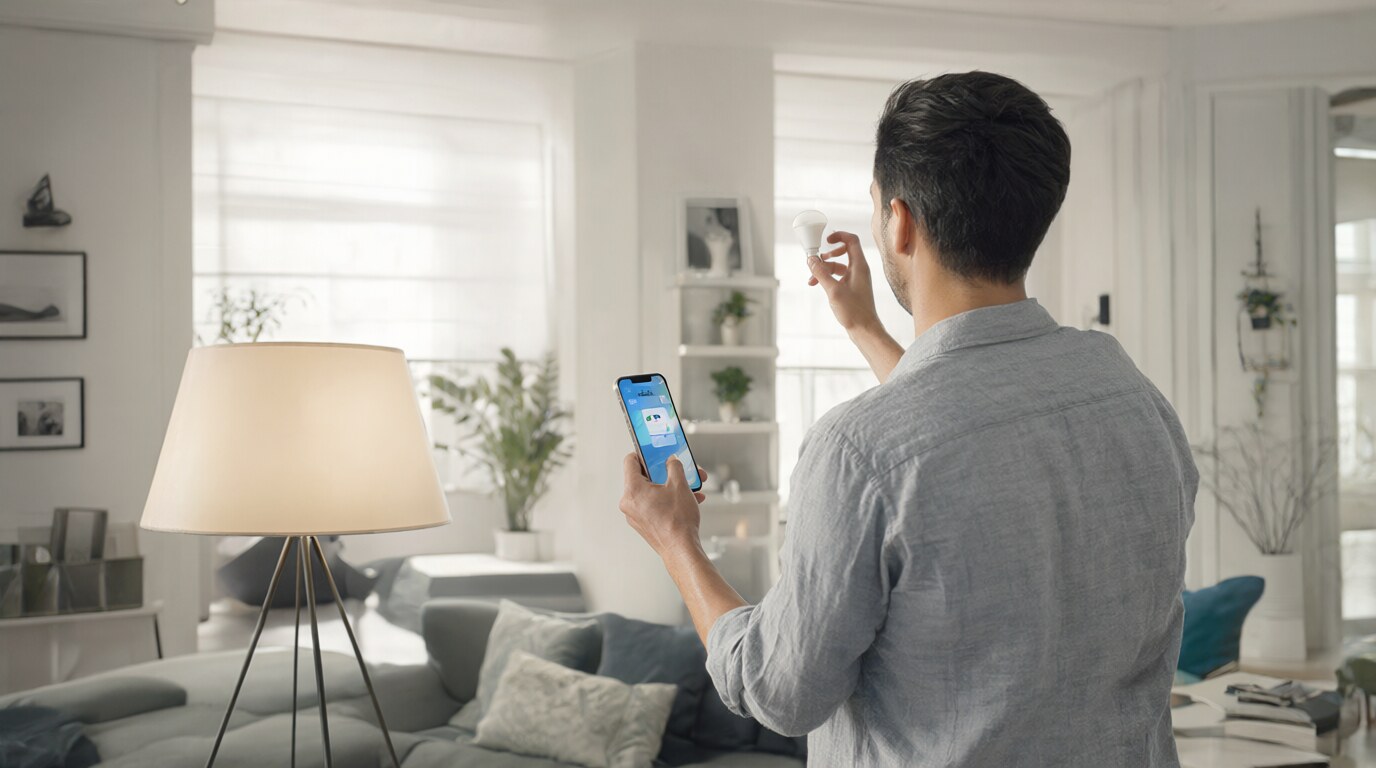
The most visible smart home upgrade. Control lights with your voice, phone, or automations.
- Budget: Wyze Bulb Color ($10 each) — Wi-Fi, no hub needed
- Best: Philips Hue White ($15 each) — requires Hue Bridge ($50) but most reliable
- Apple: Nanoleaf Essentials ($20 each) — Thread/Matter, HomeKit native
Device 3: Smart Plug ($15-25)
Turn any device into a smart device. Plug in a lamp, fan, coffee maker — control it with your voice or phone.
- Best budget: TP-Link Kasa Smart Plug Mini ($13) — Wi-Fi, compact, reliable
- Best for Apple: Eve Energy Plug ($40) — Thread/Matter, HomeKit native
Total starter cost: $80 (Echo Dot) + $30 (2 Hue White bulbs) + $50 (Hue Bridge) + $15 (plug) = $175 — or about $115 with budget Wi-Fi bulbs (2× Wyze, no bridge needed)
Step 3: Setup Process
1. Set Up Your Smart Speaker
- Plug in your smart speaker
- Download the companion app (Alexa, Google Home, or Apple Home)
- Follow the in-app setup — connects to Wi-Fi in 2 minutes
- Test: say “Turn on the living room light” (doesn’t work yet — you’ll add devices next)
2. Add Smart Bulbs
- Screw in your smart bulbs (replace existing bulbs)
- In the app, tap “Add Device” → “Lighting” → follow instructions
- Most bulbs: turn the light switch on 3 times to enter pairing mode
- Name each bulb by location: “Living Room Light,” “Bedroom Light”
- Test: say “Turn on the living room light” — it works!
3. Add Smart Plug
- Plug the smart plug into a wall outlet
- Plug a lamp or fan into the smart plug
- In the app, tap “Add Device” → “Plug” → follow instructions
- Name it: “Bedroom Fan” or “Coffee Maker”
- Test: say “Turn on the bedroom fan”
Step 4: Create Your First Automation
Automations make your smart home actually smart — devices work together without you doing anything.
Automation 1: Good Morning
Trigger: Specific time (e.g., 7:00 AM) or “When I arrive home”
Actions:
- Turn on living room lights (warm white, 80% brightness)
- Turn on coffee maker (via smart plug)
- Set thermostat to 72°F
Automation 2: Good Night
Trigger: Specific time (e.g., 11:00 PM) or voice command “Good night”
Actions:
- Turn off all lights
- Turn off all smart plugs
- Lock front door (if you have a smart lock)
- Set thermostat to 68°F
Automation 3: Away Mode
Trigger: Everyone leaves home (phone location-based)
Actions:
- Turn off all lights
- Turn off all smart plugs
- Lock all doors
- Arm security camera
Step 5: Expand Over Time
After your starter setup, add devices based on what would actually improve your daily life:
Next 3 Devices (Month 2-3)
- Smart thermostat ($329 MSRP, street $250-285) — saves 10-26% on heating/cooling costs. Pays for itself.
- Smart lock ($150-280) — never lock yourself out. Auto-lock after 30 seconds.
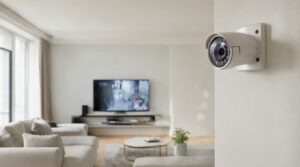
- Indoor camera ($199.99) — check on pets, kids, or package deliveries. Our pick, the Aqara Camera Hub G5 Pro, doubles as a Zigbee/Thread hub.
Next 3 Devices (Month 4-6)
- Robot vacuum ($300-600) — eliminates a chore entirely. Set schedule and forget.
- Smart blinds ($100-200/window) — automatic light control, energy savings.
- Doorbell camera ($100-200) — see who’s at the door from anywhere.
See our full smart home device guide for specific recommendations.
Common Mistakes to Avoid
❌ Buying Too Many Devices at Once
Start with 3 devices. Learn how they work. Then add more. Buying 15 devices at once leads to frustration and unused gadgets.
❌ Mixing Platforms
Choose ONE platform (Alexa, Google, or HomeKit) and stick with it. Mixing platforms means separate apps and automations that don’t work together. Matter-compatible devices are the exception — they work across platforms.
❌ Buying Wi-Fi Devices Exclusively
Wi-Fi devices congest your router if you have 20+ smart devices. Use Zigbee, Z-Wave, or Thread devices when possible — they create their own mesh network and don’t use your Wi-Fi bandwidth.
❌ Ignoring Security
Smart home devices can be hacked. Protect yourself:
- Use strong, unique passwords for each device
- Enable two-factor authentication on your smart home account
- Keep firmware updated
- Buy from reputable brands (avoid no-name Amazon brands)
- Put smart home devices on a separate Wi-Fi network (guest network) if your router supports it
❌ Not Using Automations
A smart home without automations is just a remote-controlled home. Automations are what make it “smart.” Set up at least 3 automations (Good Morning, Good Night, Away Mode) to get real value from your devices.
Frequently Asked Questions
How much does a smart home cost?
Starter setup: $115-175 (speaker + 2 bulbs + plug; Philips Hue bulbs add the $50 Bridge). A solid setup with thermostat, lock, and camera: $680-810. A comprehensive smart home: $1,000-2,000 over 6-12 months. Start small and add devices as needed.
Do I need a hub?
Maybe not. Wi-Fi devices don’t need a hub. Apple TV and HomePod act as HomeKit hubs, and some devices include hub radios — the Aqara Camera Hub G5 Pro, for example, doubles as a Zigbee/Thread hub. You only need a separate hub (like SmartThings, $80) if you mix Zigbee/Z-Wave devices from different brands.
Can I set up a smart home in an apartment?
Yes. Smart bulbs (screw in, no wiring), smart plugs (plug into outlets), and Wi-Fi cameras (no drilling) work in rentals. Avoid: smart thermostats (require wiring), smart locks (landlord approval), and anything requiring permanent installation.
Is a smart home worth it?
Yes, if you value convenience and security. Voice-controlled lights, automated thermostats (save money), smart locks (never locked out), and security cameras (peace of mind) provide real daily value. If you’re happy walking to the switch, it’s not worth it.
Conclusion
Setting up a smart home in 2026 is simple: choose a platform (Alexa for most people), buy 3 starter devices (speaker, bulbs, plug — $115-175), and create 3 automations (Good Morning, Good Night, Away Mode). That’s it — you have a smart home.
Add devices over time based on what would improve your daily life. A smart thermostat pays for itself. A smart lock eliminates a daily annoyance. A robot vacuum eliminates a chore. Build your smart home one device at a time.
Continue reading:
Further reading: How to Create an Alexa Routine, Arlo vs Eufy: Which Home Security Camera System Is Best?, How to Stream Your Nest Camera to a TV, How to Pause Your Home Wi-Fi.