The Steam Deck Runs Linux — And That’s a Feature
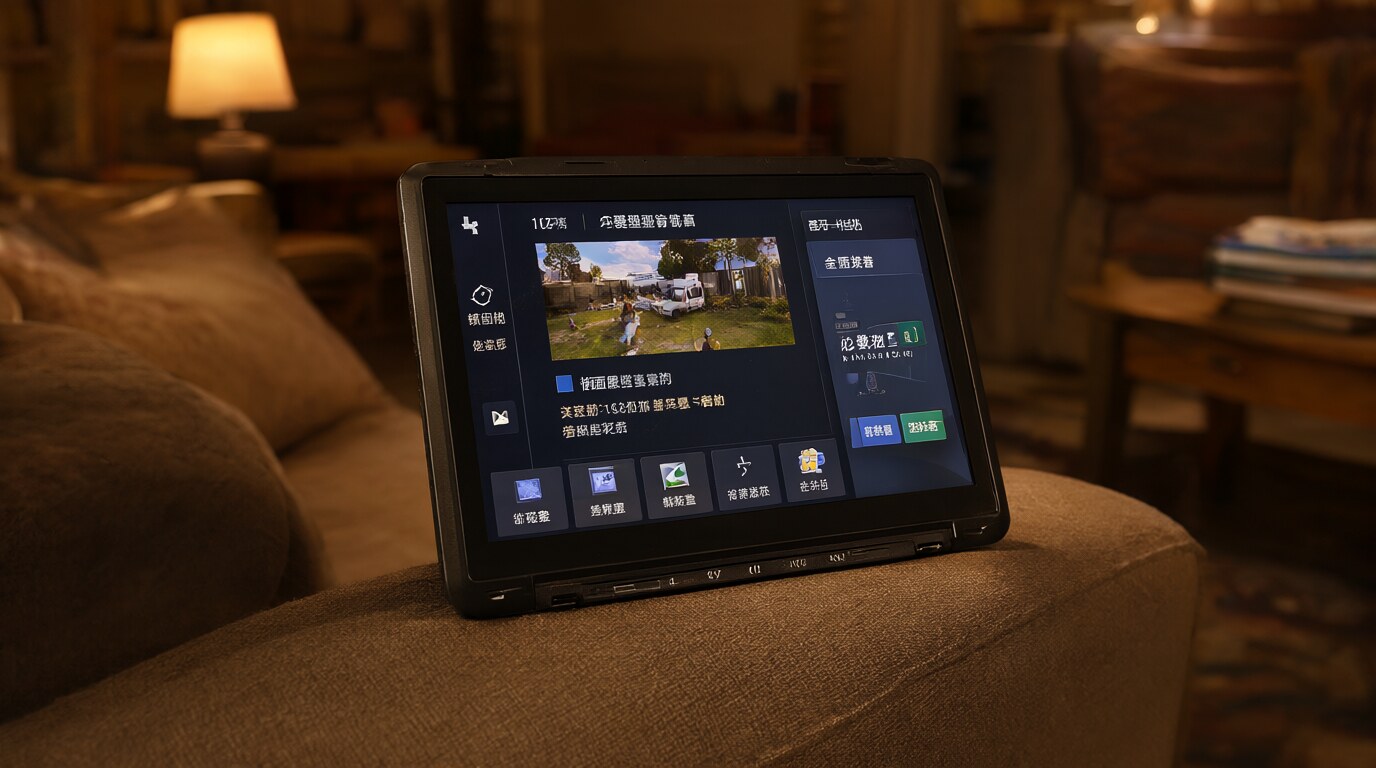
The Steam Deck runs SteamOS, which is based on Linux. Steam is built in, but you’re not locked to it. Desktop mode gives you full access to a Linux desktop where you can install other game stores, browsers, and applications. The easiest way to access non-Steam stores is through a community-built tool called Heroic Games Launcher.
Step 1: Enter Desktop Mode
Hold the power button → select Switch to Desktop. The Steam Deck restarts into a KDE Plasma desktop environment. This is a full Linux desktop — you can use the trackpads and triggers as mouse buttons, or connect a keyboard and mouse via USB or Bluetooth.
Step 2: Install Heroic Games Launcher
Heroic is an open-source launcher that supports Epic Games Store and GOG natively on Linux. It handles login, game downloads, and compatibility through Wine/Proton automatically.
- Open the Discover app (the shopping bag icon in the taskbar — it’s KDE’s software center)
- Search for “Heroic Games Launcher”
- Click Install
- Launch Heroic from the app menu
Log into your Epic Games and/or GOG accounts through Heroic. Your library appears automatically. Heroic uses its own compatibility layer based on Wine-GE (a community-maintained build of Wine optimized for gaming) to run Windows games on the Deck.
Step 3: Add Heroic to Steam (For Gaming Mode)
To launch Heroic from the standard Steam Deck gaming interface:
- Open Steam in desktop mode
- Go to Library → Add a Non-Steam Game
- Find Heroic in the list and add it
- Switch back to Gaming Mode (click the Steam icon → Return to Gaming Mode)
- Heroic appears in your non-Steam library
From Gaming Mode, you can launch Heroic, pick a game, and it runs through Proton/Wine. The experience isn’t as seamless as native Steam games — you’ll occasionally need to switch to desktop mode for updates or troubleshooting — but it works for the vast majority of games.
Alternative: Lutris
For stores beyond Epic and GOG (Origin/EA App, Ubisoft Connect, Amazon Games), Lutris is the more flexible option. Install it from Discover the same way. Lutris uses community-maintained install scripts that automate the setup for specific games and launchers. It’s more manual than Heroic but supports a wider range of sources.
Proton Compatibility
Not every Windows game works on the Steam Deck. Check ProtonDB (protondb.com) before buying — it shows community-reported compatibility ratings for games running through Proton. Games rated “Platinum” or “Gold” generally work well. “Silver” and “Bronze” may require tweaks. “Borked” means it doesn’t work.
The Steam Deck’s built-in Proton (used for Steam games) and Heroic’s Wine-GE handle most popular games fine. Anti-cheat software (some competitive multiplayer games) is the most common dealbreaker — games with kernel-level anti-cheat often don’t work through Proton.