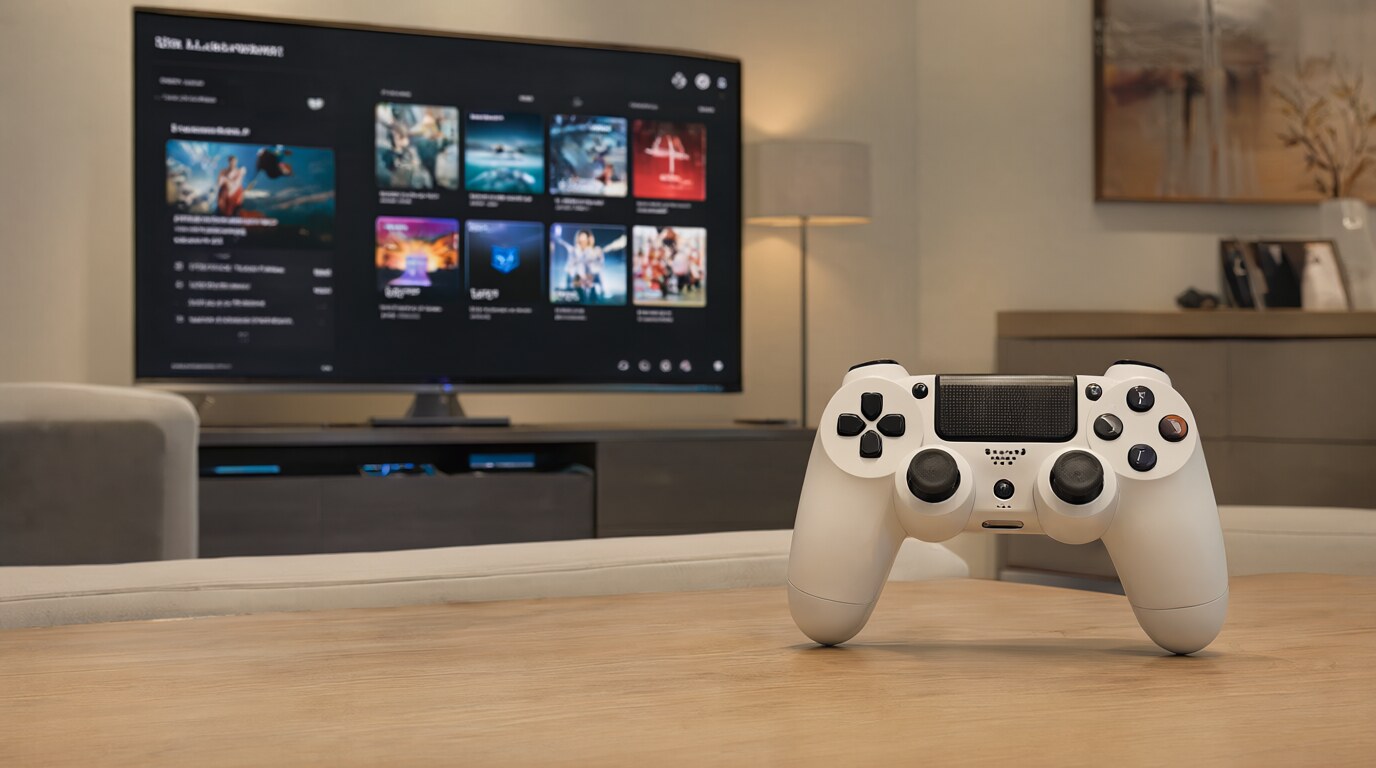
PlayStation Controllers Should Just Work — And Usually Do
Most of the time, you plug in a USB cable and the controller pairs to your console. But when it doesn’t work — the controller won’t connect, it keeps disconnecting, or it’s paired to the wrong device — the fix isn’t always obvious. Here’s every pairing method and the troubleshooting steps worth trying.
Connecting a DualSense (PS5) to PS5
- Connect the controller to the PS5 with a USB-C cable
- Press the PS button on the controller
- The light bar pulses, then turns solid when paired
- Once paired over USB, the controller works wirelessly. You can unplug the cable.
For additional controllers: with the PS5 on, connect the new controller via USB and press the PS button. Assign it to a user when prompted.
Connecting a DualShock 4 (PS4) to PS4
- Connect the controller to the PS4 with a USB-micro cable
- Press the PS button
- The light bar pulses, then turns a solid color (indicating the player number)
Same process for additional controllers. Up to 4 controllers can be connected simultaneously.
Connecting to PC (Bluetooth)
DualSense: Hold Create + PS for 3 seconds until the light bar flashes rapidly. Open Windows Bluetooth settings → Add device → select “DualSense wireless controller.”
DualShock 4: Hold Share + PS for 3 seconds until the light bar flashes rapidly. Open Windows Bluetooth settings → Add device → select “Wireless Controller.”
For Steam: Steam natively supports both controllers. Enable “PlayStation Configuration Support” in Steam → Settings → Controller. This lets you customize button mappings and use the touchpad.
Connecting to PC (USB)
Plug in the USB cable. Windows recognizes both controllers as generic gamepads. For full feature support (touchpad, gyro, light bar), use DS4Windows (for DualShock 4) or Steam’s native support. Windows doesn’t natively support all DualSense features via USB without third-party software.
When It Won’t Connect: Reset the Controller
If a controller won’t pair or keeps disconnecting, reset it:
- DualSense: Look for a tiny hole on the back (next to the Sony logo). Insert a pin and hold for 5 seconds.
- DualShock 4: Look for a tiny hole on the back near the L2 button. Insert a pin and hold for 5 seconds.
After resetting, connect via USB and press the PS button to re-pair. The reset clears the controller’s Bluetooth pairing history, which fixes most connection issues caused by the controller remembering a previous device.
Common Problems
- Controller works on USB but not wireless: The Bluetooth pairing is corrupted. Reset the controller and re-pair.
- Controller connects but light bar blinks: Low battery. Charge for 30+ minutes before use.
- Input lag on PC: Use a USB cable instead of Bluetooth for lower latency. Or try DS4Windows with the “reduce latency” option enabled.
- Controller won’t charge: Try a different cable and a different USB port. The charging IC in controllers sometimes fails — if it won’t charge on any cable/port, the controller needs replacement.
Further reading: How to Get Your Steam Deck to Access the Epic Games Store and More.